Securit, secure it!
What is Securit?
Securit is an encrypted storage utility on Windows platform. With Securit, you will be able to protect your confidential data with the industrial level ECIES encryption, while you generate and take full control of your ECDSA private key. And there are more benefits you will gain from Securit.
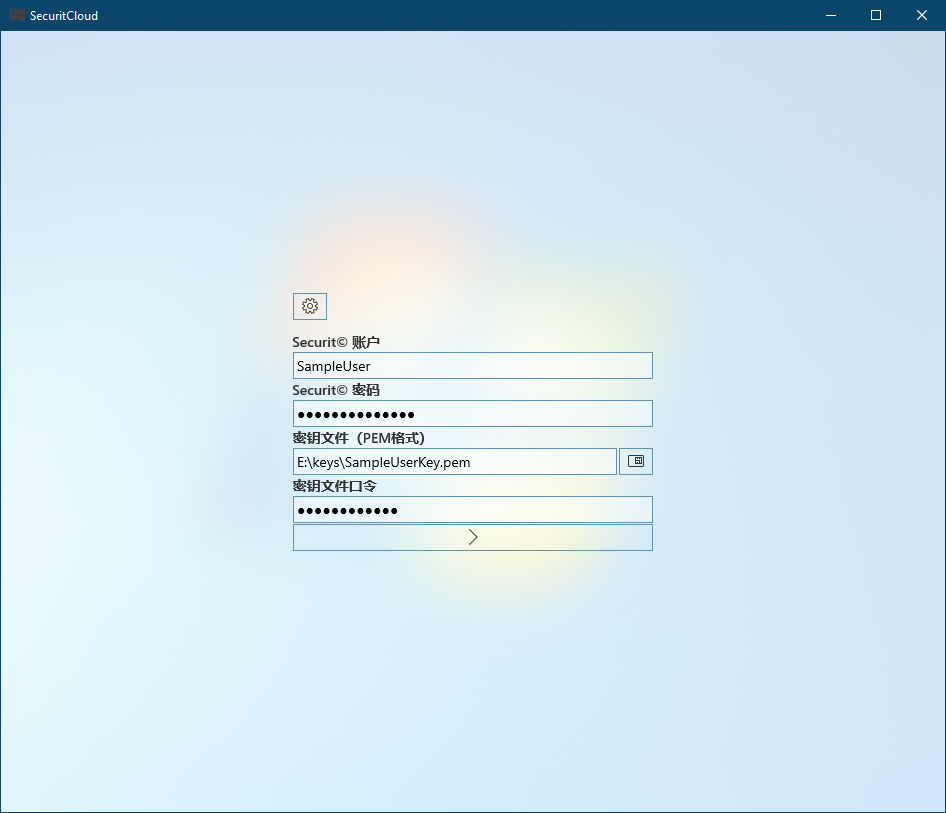
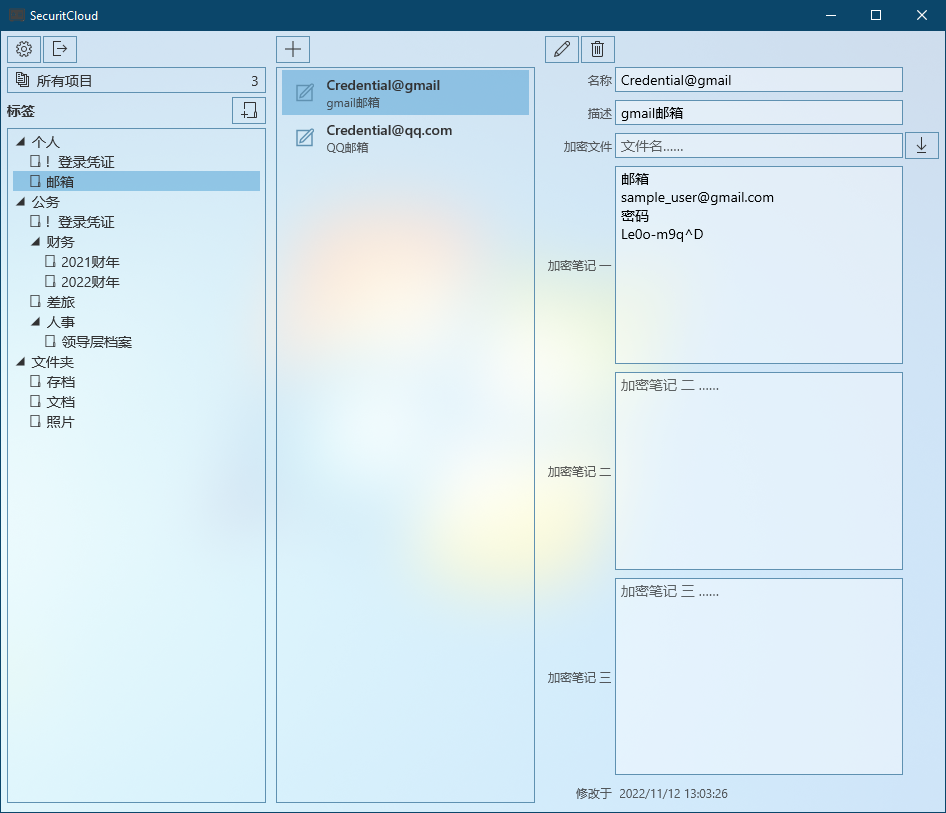
You are offered both local and cloud versions. While the local version is free to use, the cloud version requires a SecuritCloud account to store your encrypted data (subscription fees and extra storage charges may apply). Please consult our customer service if you would like to subscribe to SecuritCloud.
How does Securit protect my data?
There are two types of data can be encrypted and protected by Securit - text notes and general files. Securit encrypts your data by applying ECIES scheme with the AES algorithm and your ECDSA private key then stores the encrypted data in the corresponding storage. Securit also allows you to manage your data records by categorizing them with customizable tags.
How can I obtain a private key?
On Windows, you can generate an ECDSA private key by using the famous open-source tool PuTTYgen.
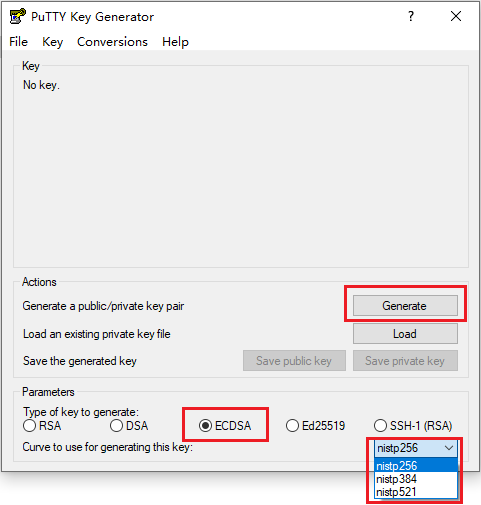
Once your download and launch PuTTYgen, select parameters as key type ECDSA and any curve before you click "Generate" button.
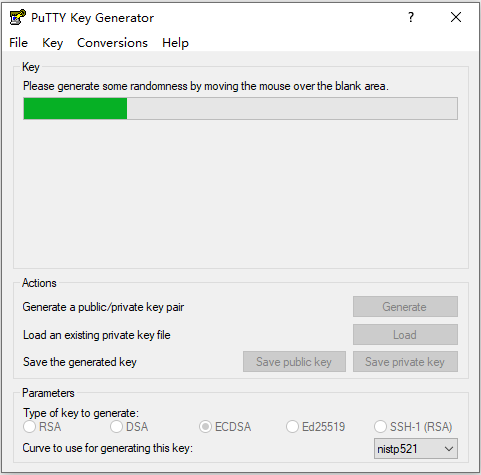
Keep moving your mouse cursor randomly in the window until the progress bar reaches the end.
Once the private key is generated, enter the optional comment, passphrase and confirm passphrase before you click menu item "Conversions/Export OpenSSH key".
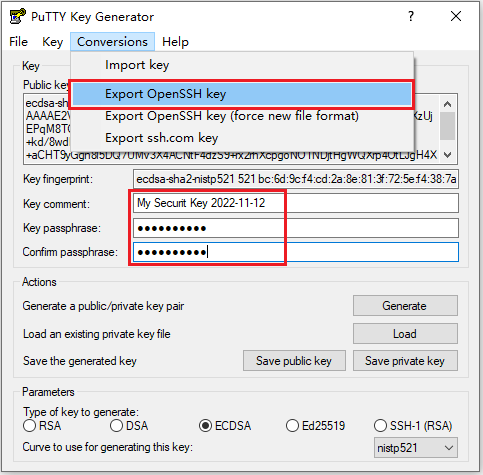
You will be prompted a save file dialog where you would like to keep it (e.g. a USB disk or a SD card). Later you select this key file when signing into Securit.
Alternatively you may refer to this article for more information of PuTTYgen key generation.